
Because OCI does not currently accept ISO Boot or PXE Boot, a practical recovery path requires a combination of Veeam functionality and OCI image-creation workflow.
Below is the step-by-step process for restoring an entire OCI VM from a Veeam backup.
Step 1 – Export the Disk as VMDK from Veeam
Veeam allows you to Export Disk from any agent backup.
Perform the following from the VBR console:
- Choose Restore → Export Disk.
- Select the VM disk(s) you want to recover.
- Export them as VMDK to a local folder on the VBR server.
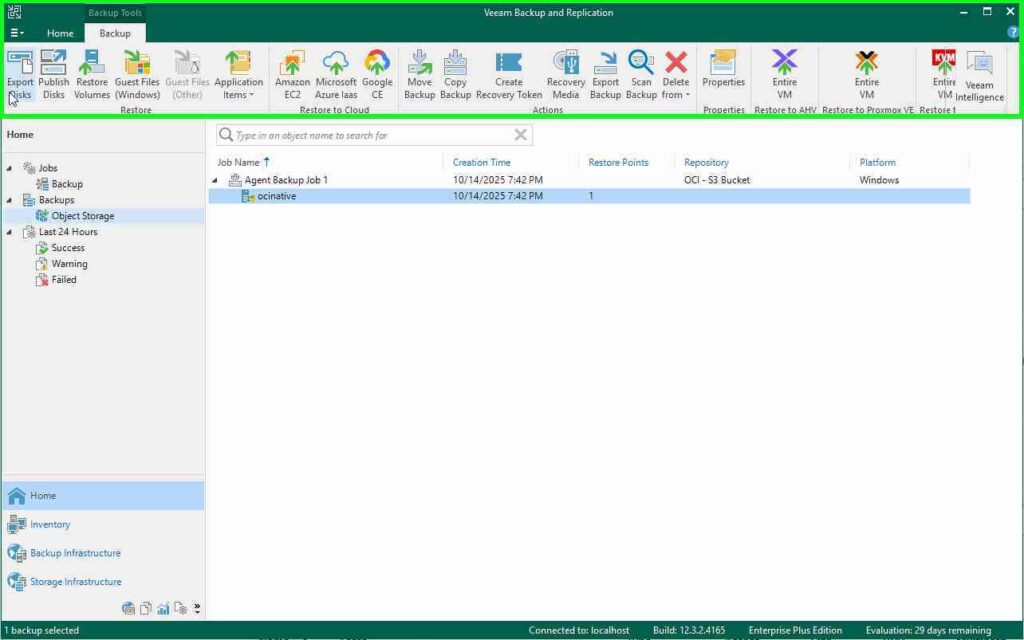
This gives you a standalone virtual disk image to upload into OCI.
Step 2 – Upload the VMDK to an OCI Object Storage Bucket
Once exported, upload the VMDK to OCI. You can use:
- The OCI Console upload option
- OCI CLI (recommended for large files)
- Any S3-compatible tool, since OCI buckets support the S3 protocol
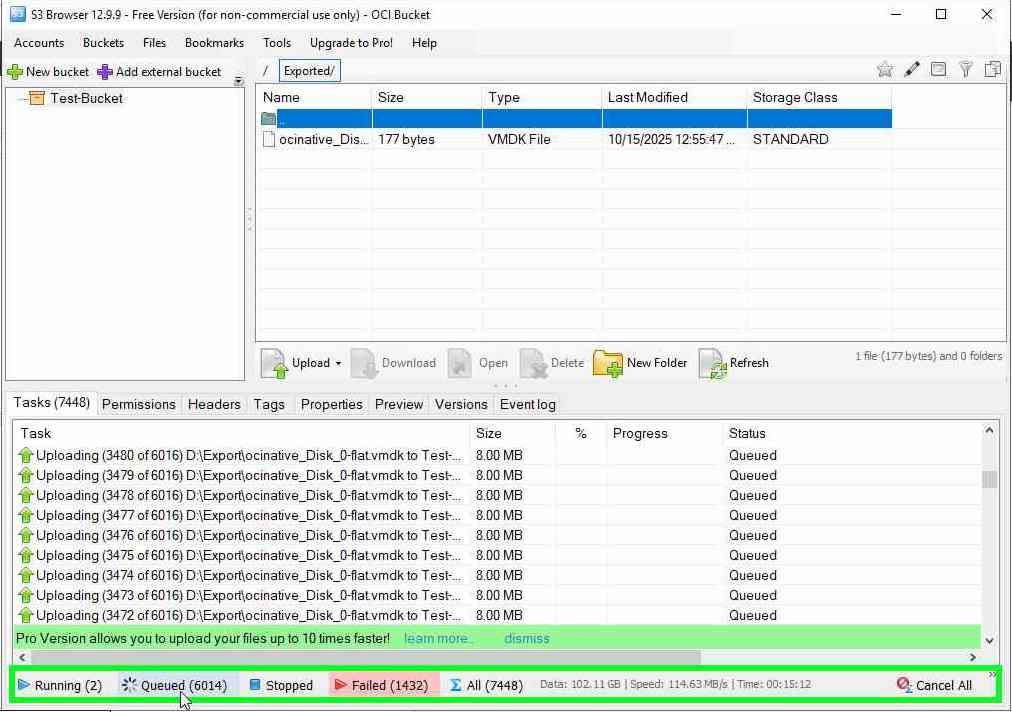
Make sure the bucket is in the correct region for the target compute instance.
Step 3 – Create a Custom Image in OCI
With the disk uploaded, create a Custom Image from the VMDK.
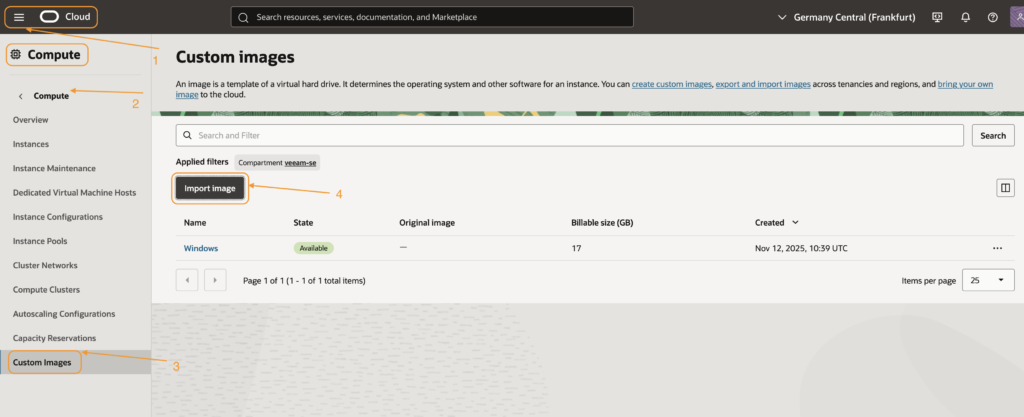
For Windows VMs
- Create a Custom Image using Windows as the base OS.
- Fill in the information for that custom Image
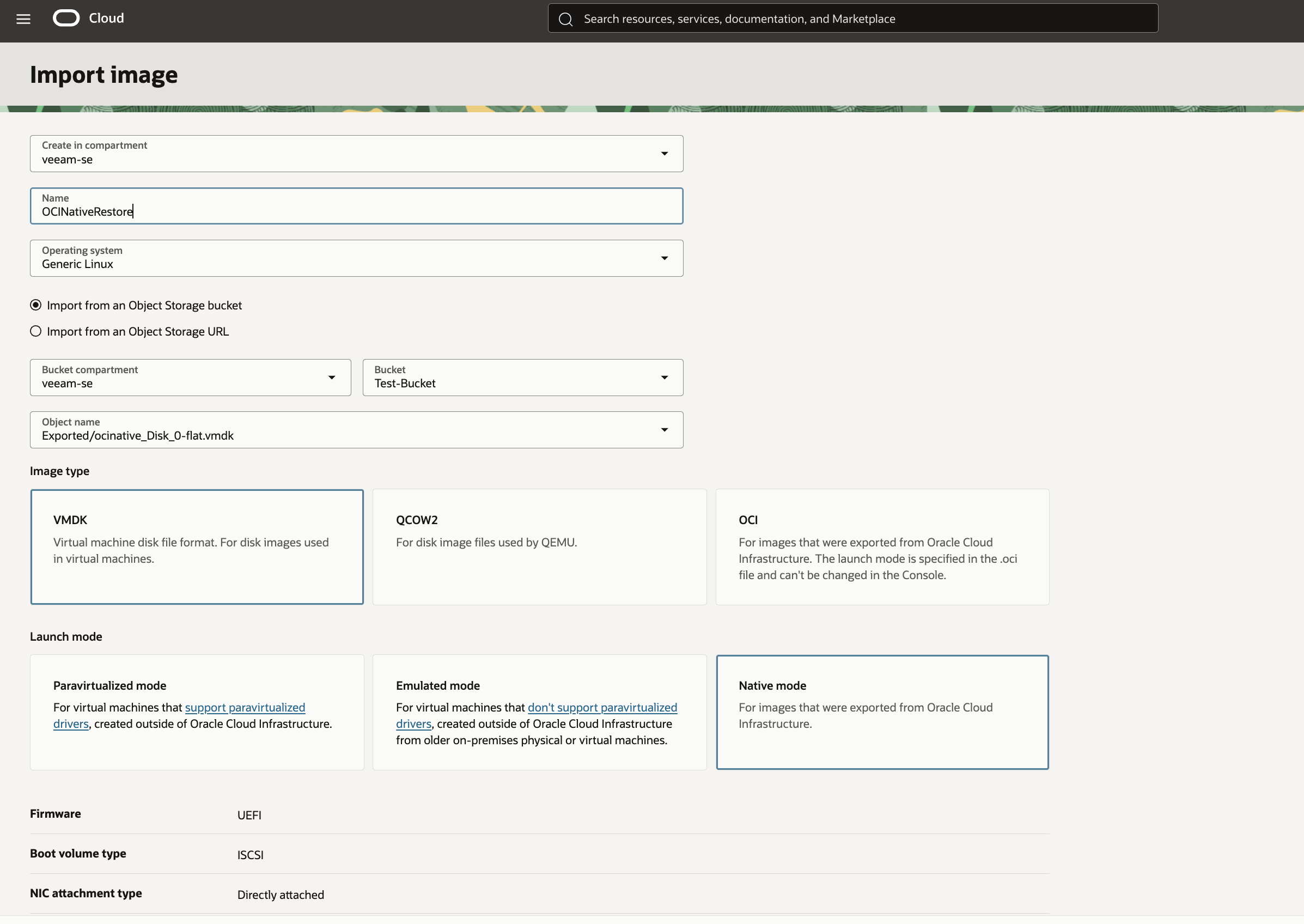
- edit the Image Capabilities to enable UEFI boot mode.
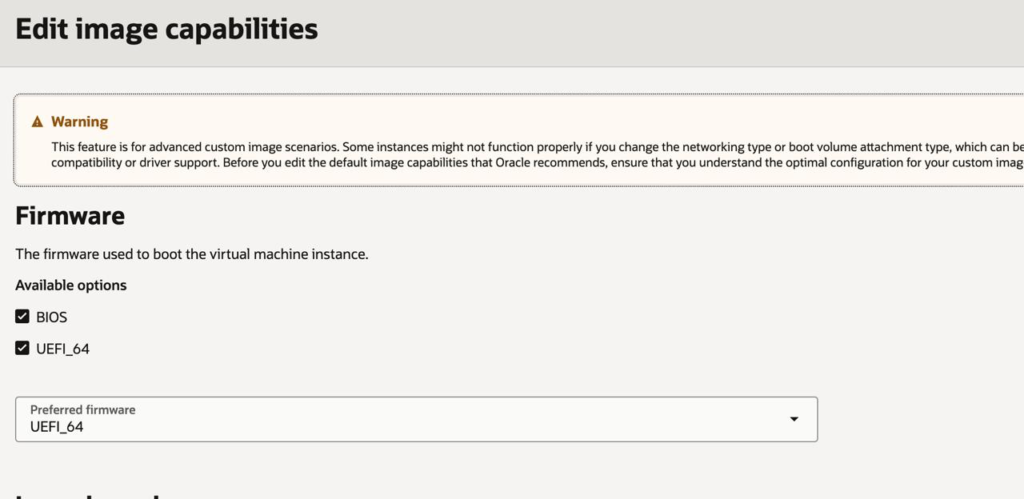
ensure the OS boots correctly with OCI-supported drivers.
Step 4 – Create an Instance from the Custom Image
Once the custom image is successfully created:
- Launch a new compute instance from the custom image.

- Assign the same private IP address as the original machine (if desired).
- This maintains hostname/IP consistency for applications and integrations.
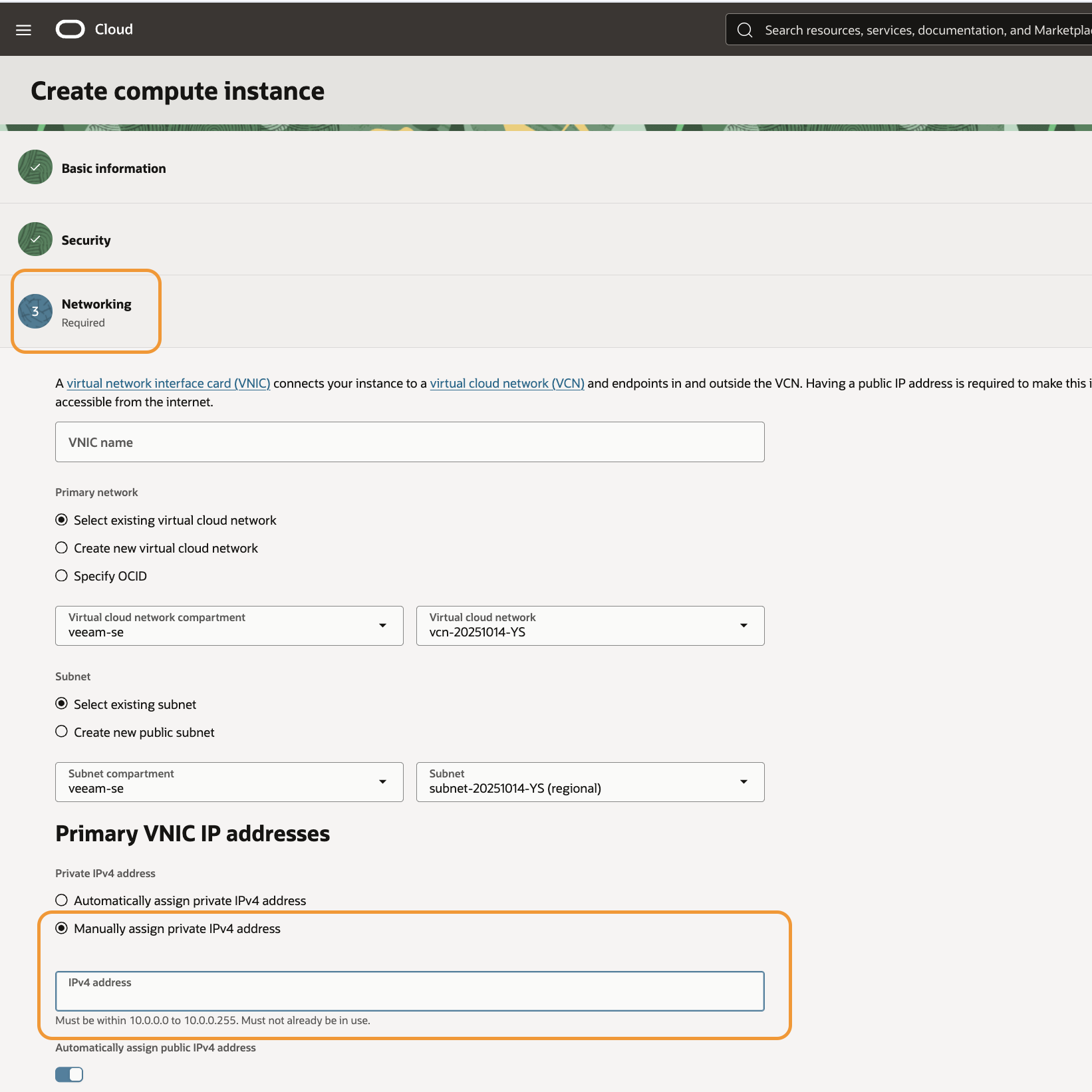
- This maintains hostname/IP consistency for applications and integrations.
- Resize the shape or VNIC settings as needed.
At this stage, the restored VM boots from the Veeam-provided disk image.
Step 5 – Recreate Additional Volumes & Recover Using Veeam Agent
If the original machine contained multiple data volumes:
- Recreate those block volumes in OCI.
- Attach them to the newly created instance.
- Use Veeam Agent Volume Restore to recover the data from the backup into the OCI-attached block volumes.
This provides a complete full-instance recovery—OS, configuration, apps, and data.
Conclusion
While OCI currently lacks direct hypervisor integration with Veeam, the combination of:
- Veeam Agent backups
- Supported file/volume/application recovery options
- A full-machine restore workaround via VMDK export and OCI custom images
gives organizations a reliable, repeatable strategy for protecting and restoring OCI native compute workloads.
Leave a Reply