
Overview
Veeam Backup & Replication uses PostgreSQL as its embedded configuration database. Staying on PostgreSQL 15 means missing out on vacuum improvements, memory management gains, query planner enhancements, and ongoing security patches introduced in PG 16 and 17.
This guide walks through both paths — the officially supported Configuration Backup and Restore method, and the native pg_upgrade in-place migration for those comfortable operating outside the support boundary
There are two means to approach this, one is through the Configuraiton Backup and Recovery (Migration Mode) or through the native PostgreSQL tools, while the official supported approach is to use the configuration backup and recovery, I am putting here both approaches for those who brave of Heart to use native PostgreSQL method.
Approach 1 – Configuration Backup and Restore (Supported)
| Detail | Value |
|---|---|
| Source version | PostgreSQL 15.x |
| Target version | PostgreSQL 17.x (17.6 tested) |
| Method | Configuration Backup and Restore (Migrate) — Veeam |
| Platform | Windows Server |
| Downtime required | Yes — all Veeam services must be stopped |
You can use the installation file from the Veeam ISO under Redistr\x64\PostgreSQL\17.6-1 folder.
Table of Contents
- Confirm current version and install PostgreSQL 17 side-by-side
- Back up the current VeeamBackup database using Veeam Configuration Backup and stop PostgreSQL services
- Change the new PostgreSQL 17 Engine port, permissions and Restore the Configuration Backup to the upgraded engine.
- Run the optimization command from Veeam
- Test, clean up, and uninstall PG 15
Step 1 — Confirm Current Version and Install PostgreSQL 17
Open an elevated PowerShell session and confirm what you’re running:
cd 'C:\Program Files\PostgreSQL\15\bin\'
.\psql -V

# Output:
# psql (PostgreSQL) 15.x
Install PG 17 silently from the same elevated session. The --disable-components stackbuilder flag skips the Stack Builder launcher — not needed for this process:
.\postgresql-17.6-1-windows-x64.exe `
    --mode unattended `
    --disable-components stackbuilder
⚠️ Port assignment. If PG 15 is already running on port 5432, the installer assigns PG 17 to a different port (e.g., 5433) automatically. Leave it there for now — you will reconfigure the port after the restore completes. Do not start the PG 17 service yet.
Confirm PG 17 installed correctly:
cd 'C:\Program Files\PostgreSQL\17\bin\'
.\psql -V

# Output:
# psql (PostgreSQL) 17.6
Step 2 — Back Up the Current VeeamBackup Database Using Veeam Configuration Backup
Before stopping anything, trigger a Configuration Backup from the Veeam console:
- Open Veeam Backup & Replication Console
- Go to Main Menu → Configuration Backup
- Confirm the last backup completed successfully and the target is accessible and Encryption is enabled (Password known).
- Optionally trigger an immediate backup: Backup Now
⚠️ This is your rollback point. The configuration backup captures the entire VeeamBackup database — jobs, credentials, infrastructure objects, policies, and reporting data. Without a current backup, there is no clean restore path if something fails. If VBR is running as a VM, take a snapshot now as an additional safety net.
Additionally you need to Stop and Disable PostgreSQL services from older PostgreSQL version.
Stop all Veeam services:
Get-Service Veeam* | Stop-Service -ForceStop PG 15:
Stop-Service -Name postgresql-x64-15Note the backup file location — you will need it in Step 3.
Step 3 — Restore the Configuration Backup to the Upgraded Engine
Auth Config, Fix Port, Start PG 17
Now restore the PG 17 cluster to production-ready configuration. Edit the following three files inside C:\Program Files\PostgreSQL\17\data\:
pg_hba.conf — copy from the PG 15 version.
host    all    all    127.0.0.1/32    sspi map=veeam
host    all    all    ::1/128         sspi map=veeam
pg_ident.conf — copy veeam mappings from the PG 15 version
Open the PG 15 version of pg_ident.conf and copy the veeam mapping entries from the bottom of the file into the PG 17 version. They will look like:
veeam   DOMAIN\ServiceAccount   postgres
veeam   "SYSTEM@NT AUTHORITY"   postgres
postgresql.conf — fix the port
if PG 17 was installed on a different port (e.g., 5433), change it back to match what PG 15 was using:
port = 5432Now start the PG 17 service:
Start-Service -Name postgresql-x64-17Launch the Veeam Backup & Replication Configuration Restore Wizard and proceed through the upgrade wizard. When prompted for the database engine, point it at the newly installed PostgreSQL 17 instance. The installer will re-register Veeam against PG 17 and handle the port reassignment.
If Veeam does not automatically migrate the database during the upgrade, use the explicit Configuration Restore path:
- Open the Veeam Backup & Replication console
- Go to Main Menu → Configuration Backup → Restore
- Select Migrate mode
- Point to your configuration backup file
- When prompted for the database target, select the PG 17 instance
⚠️ Migrate vs. Restore. The Migrate option re-creates the entire VeeamBackup schema on the new engine and imports all configuration data. Standard Restore overwrites an existing database — it does not move data between engine versions. Always use Migrate when switching PostgreSQL versions.
Step 4 — Run the Optimization powershell from Veeam
After the restore completes and Veeam services are back online, run the post-migration optimization. This rebuilds internal statistics and re-indexes key tables for the PG 17 engine:
Set-VBRPSQLDatabaseServerLimitsWait for the powershell command to complete before proceeding. On larger databases with many jobs and restore points, this can take several minutes.
Step 5 — Test, Clean Up, and Uninstall PG 15
Verify Veeam is healthy before removing anything:
- Open the Veeam console and confirm all jobs, proxies, and repositories are visible and correctly configured
- Check Last Session status on your most critical jobs
- Run a test backup job — do not skip this step
Once confirmed working, perform the following cleanup steps in order:
- Open Services (services.msc) → set
postgresql-x64-15to Disabled - Reboot the server
- After reboot, uninstall PostgreSQL 15 from Add or Remove Programs
⚠️ Do not uninstall PG 15 until after a successful test backup. As long as the PG 15 data directory is intact and the service is only disabled, you retain a manual rollback option. Once uninstalled, that path is gone.
Summary
Your Veeam Backup & Replication instance is now running on PostgreSQL 17 using the fully supported migration path. No native PostgreSQL tooling was required — Veeam’s built-in Configuration Backup and Restore handled the schema migration, data transfer, and engine re-registration.
| Error | Cause | Fix |
|---|---|---|
| Veeam services fail to start after restore | Port still set to 5433 on PG 17 | Edit postgresql.conf → set port = 5432, restart PG 17 service |
| Restore wizard cannot connect to PG 17 | PG 17 service not running | Start postgresql-x64-17 in services.msc before launching the restore |
| Configuration Restore option is greyed out | Veeam services still running | Stop all Veeam services first, then retry |
Approach 2 – (Not Officially Supported)
a full upgrade path — step by step, with real commands and the exact gotchas you will hit — using pg_upgrade for an in-place migration with minimal downtime.
| Detail | Value |
|---|---|
| Source version | PostgreSQL 15.x |
| Target version | PostgreSQL 17.x (17.6 tested) |
| Method | pg_upgrade (in-place) |
| Platform | Windows Server |
| Downtime required | Yes — all Veeam services must be stopped |
You can use the installation file from the Veeam ISO under Redistr\x64\PostgreSQL\17.6-1 folder.
Table of Contents
-
- Confirm current version and install PostgreSQL 17 side-by-side
-
- Back up the current VeeamBackup database
-
- Drop the deprecated
adminpackextension from PG 15
- Drop the deprecated
-
- Prepare the working directory and configure authentication
-
- Run
pg_upgrade— common failure points explained
- Run
-
- Restore auth config, fix port, start PG 17
-
- Rebuild optimizer statistics with
vacuumdb
- Rebuild optimizer statistics with
-
- Update extensions
-
- Test, clean up, and uninstall PG 15
Step 1 — Confirm Current Version and Install PostgreSQL 17
Open an elevated PowerShell session and confirm the currently running version:
cd 'C:\Program Files\PostgreSQL\15\bin\'
.\psql -V

# Output:
# psql (PostgreSQL) 15.15
Now install PG 17 silently from the same elevated session. The --disable-components stackbuilder flag skips the Stack Builder launcher — not needed for this process:
.\postgresql-17.9-3-windows-x64.exe `
    --mode unattended `
    --disable-components stackbuilder
⚠️ Port assignment matters. If PG 15 is already running on port 5432, the installer will assign PG 17 a different port (e.g., 5433) automatically. That is fine — you will correct the port in Step 6 after the migration is complete. Do not run both services simultaneously on the same port.
Confirm PG 17 installed correctly:
cd 'C:\Program Files\PostgreSQL\17\bin\'
.\psql -V

# Output:
# psql (PostgreSQL) 17.9
Step 2 — Back Up the Veeam Database
Before touching anything, take a backup. First confirm your current connection details such as host, port, and database name. The defaults for a standard Veeam VBR installation are:
- Database Engine: PostgreSQL
- Connection: localhost:5432
- Database Name: VeeamBackup
- PostgreSQL User: postgres
Use Veeam Backup and replication console to take a configuration database backup. and if it is running on VM take a snapshot for quick rollback option.
Step 3 — Drop the Deprecated adminpack Extension from PG 15
The adminpack extension was deprecated in PostgreSQL 16 and removed entirely in 17. It must be dropped from the PG 15 cluster before pg_upgrade will proceed — skipping this step causes a fatal error.
Start PG 15 temporarily, connect, and drop it:
Start-Service -Name postgresql-x64-15

cd 'C:\Program Files\PostgreSQL\15\bin\'
.\psql.exe -U postgres
Inside the psql session:
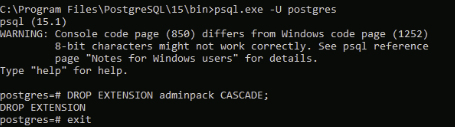
DROP EXTENSION adminpack CASCADE;
-- Output: DROP EXTENSION

exit
Stop PG 15 again immediately after:
Stop-Service -Name postgresql-x64-15🚫 Do not skip this step. If adminpack is still present, pg_upgrade will exit with: “Checking for presence of required libraries — fatal” and a reference to a loadable_libraries.txt file. The only fix is to drop the extension and rerun.
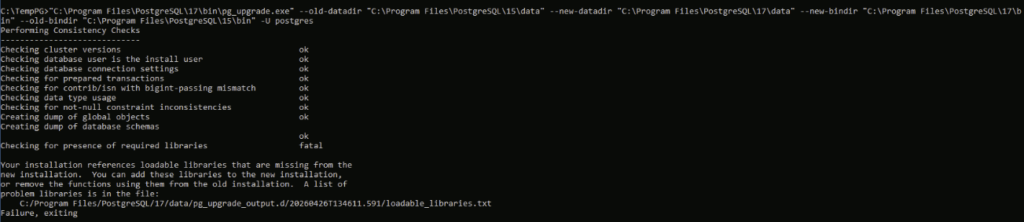
Step 4 — Prepare the Working Directory and Configure Authentication
Working directory
pg_upgrade writes log files and temporary output to whatever directory you run it from. This directory must be writable by the process.

⚠️ Gotcha #1 — Working directory permissions. Create a dedicated folder such as C:\TempPG and grant Everyone: Full Control on it. Running pg_upgrade from a restricted path (user profile, system directory) causes an immediate failure: “You must have read and write access in the current directory. Failure, exiting.”
Fix: Right-click C:\TempPG → Properties → Security → Edit → Add → Everyone → Full Control.
Authentication configuration
Temporarily edit pg_hba.conf for both the PG 15 and PG 17 data directories. Change local connection authentication from sspi to trust so pg_upgrade can connect without password prompts during the migration.
Files to edit:
C:\Program Files\PostgreSQL\15\data\pg_hba.confC:\Program Files\PostgreSQL\17\data\pg_hba.conf
# BEFORE (in both files):
host    all    all    127.0.0.1/32    sspi map=veeam
host    all    all    ::1/128         sspi map=veeam

# AFTER (temporary — revert after upgrade in Step 6):
host    all    all    127.0.0.1/32    trust
host    all    all    ::1/128         trust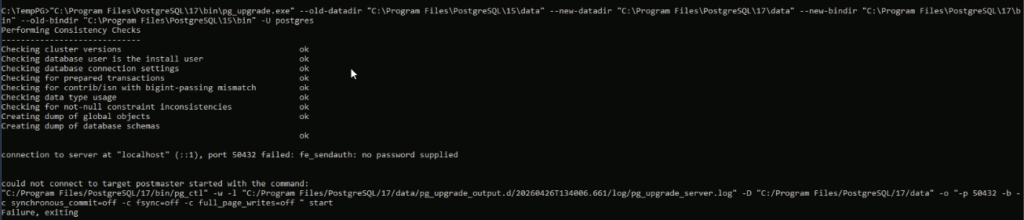
⚠️ Gotcha #2 — Port conflict. Both PG 15 and PG 17 services must be stopped before running pg_upgrade. The tool starts its own temporary instances during migration. If an existing service is already holding port 5432, the upgrade fails with: “connection to server at localhost failed: fe_sendauth: no password supplied.” Confirm both services are stopped before proceeding.
Step 5 — Run pg_upgrade
In an elevated PowerShell session, navigate to your temp working directory and run the upgrade command:
cd C:\TempPG

C:\Program` Files\PostgreSQL\17\bin\pg_upgrade.exe `
    --old-datadir "C:\Program Files\PostgreSQL\15\data" `
    --new-datadir "C:\Program Files\PostgreSQL\17\data" `
    --old-bindir  "C:\Program Files\PostgreSQL\15\bin" `
    --new-bindir  "C:\Program Files\PostgreSQL\17\bin" `
    -U postgres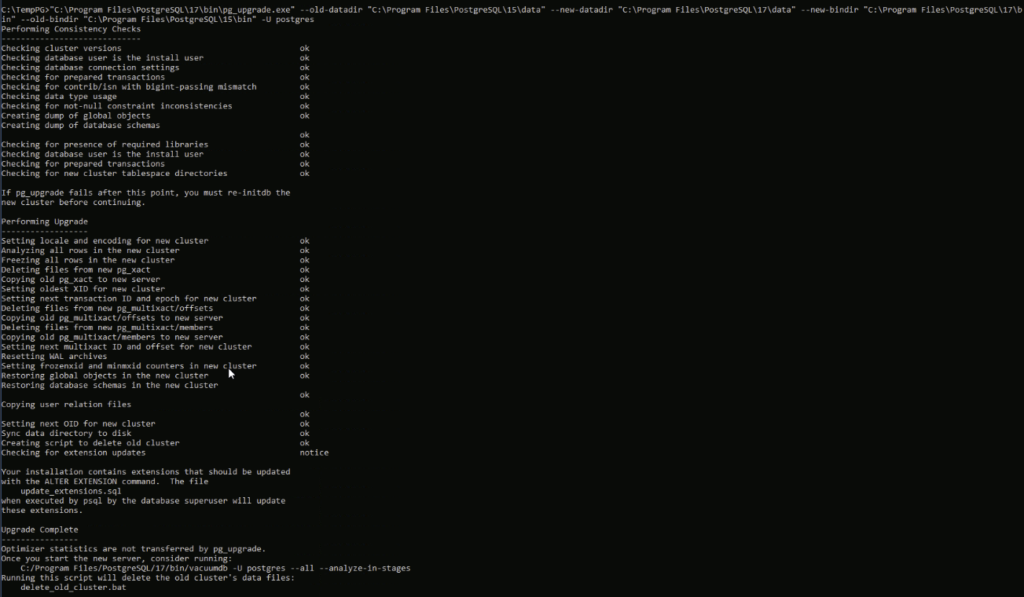
Note the backtick (`) escaping the space in C:\Program Files. Some environments fail without this escape.
A successful run passes all consistency checks and completes the upgrade. You will see output similar to this:
Performing Consistency Checks
------------------------------
Checking cluster versions                        ok
Checking database user is the install user       ok
Checking database connection settings            ok
Checking for prepared transactions               ok
Checking for presence of required libraries      ok
...

Performing Upgrade
------------------------------
Copying old pg_xact to new server                ok
Restoring global objects in the new cluster      ok
Restoring database schemas in the new cluster    ok
Copying user relation files                      ok
Sync data directory to disk                      ok
Creating script to delete old cluster            ok
Checking for extension updates                   notice

Your installation contains extensions that should be updated
with the ALTER EXTENSION command. The file update_extensions.sql
when executed by psql by the database superuser will update these.

Upgrade Complete
If either PostgreSQL service restarted automatically during the process, stop them both before continuing to Step 6.
Step 6 — Restore Auth Config, Fix Port, Start PG 17
Now restore the PG 17 cluster to production-ready configuration. Edit the following three files inside C:\Program Files\PostgreSQL\17\data\:
pg_hba.conf — revert trust back to sspi
host    all    all    127.0.0.1/32    sspi map=veeam
host    all    all    ::1/128         sspi map=veeam
pg_ident.conf — copy veeam mappings from the PG 15 version
Open the PG 15 version of pg_ident.conf and copy the veeam mapping entries from the bottom of the file into the PG 17 version. They will look like:
veeam   DOMAIN\ServiceAccount   postgres
veeam   "SYSTEM@NT AUTHORITY"   postgres
postgresql.conf — fix the port
If PG 17 was installed on a different port (e.g., 5433), change it back to match what PG 15 was using:
port = 5432Now start the PG 17 service:
Start-Service -Name postgresql-x64-17Step 7 — Rebuild Optimizer Statistics with vacuumdb
pg_upgrade does not carry over optimizer statistics to the new cluster. Without them, the PG 17 query planner starts cold and may make suboptimal execution plan decisions. The pg_upgrade output itself recommends running this command — don’t skip it:
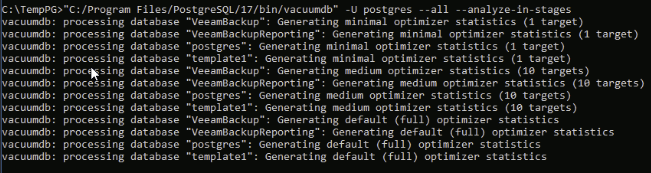
"C:\Program Files\PostgreSQL\17\bin\vacuumdb" `
    -U postgres --all --analyze-in-stages
This processes all databases including VeeamBackup and VeeamBackupReporting in three stages — minimal, medium, and full statistics — progressively building a complete optimizer picture.
Step 8 — Update Extensions
pg_upgrade generates an update_extensions.sql script in your C:\TempPG working directory. This script updates the pg_stat_statements extension in both Veeam databases to match PG 17. Run it using PG 17’s psql:
"C:\Program Files\PostgreSQL\17\bin\psql" -U postgres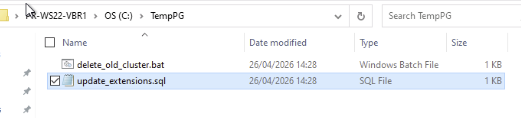
Inside the psql session:
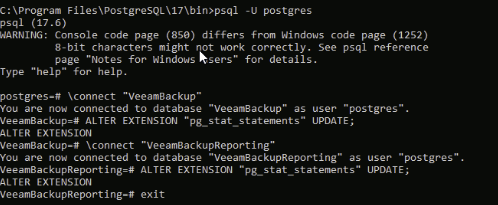
\connect "VeeamBackup"
ALTER EXTENSION "pg_stat_statements" UPDATE;
-- Output: ALTER EXTENSION

\connect "VeeamBackupReporting"
ALTER EXTENSION "pg_stat_statements" UPDATE;
-- Output: ALTER EXTENSION

exit
Step 9 — Test, Clean Up, and Uninstall PG 15
Start the Veeam Backup Service first. If it comes up cleanly, start all remaining Veeam services:
Get-Service Veeam* | Start-ServiceOpen the Veeam Backup & Replication console and verify everything looks healthy. Run a test backup job before proceeding with any cleanup.
Once confirmed working, perform the following cleanup steps in order:
- Open Services (services.msc) and set
postgresql-x64-15to Disabled - Run
delete_old_cluster.batfromC:\TempPG— this removesC:\Program Files\PostgreSQL\15\data - Delete the
C:\TempPGworking directory - Reboot the server
- After reboot, uninstall PostgreSQL 15 from Add or Remove Programs
⚠️ The delete_old_cluster.bat script runs RMDIR /s /q "C:\Program Files\PostgreSQL\15\data" — this is irreversible. Only execute it after a successful backup test. The PG 15 data directory is your last rollback path.
Summary
Your Veeam Backup & Replication instance is now running on PostgreSQL 17. The VeeamBackup and VeeamBackupReporting databases have been migrated in-place, authentication restored, optimizer statistics rebuilt, and extensions updated.
PostgreSQL 17 brings improved vacuum scheduling, better memory management under concurrent workloads, and enhanced query planner decisions — all of which are meaningful for a busy VBR environment handling multiple concurrent backup and restore jobs.
Quick reference — the two most common failure points
| Error | Cause | Fix |
|---|---|---|
| Checking for presence of required libraries — fatal | adminpack extension still present in PG 15 | DROP EXTENSION adminpack CASCADE in PG 15 psql, then retry |
| You must have read and write access in the current directory | Running pg_upgrade from a restricted folder | Create C:\TempPG with Everyone: Full Control, run from there |
| fe_sendauth: no password supplied | pg_hba.conf still set to sspi, or a service is holding the port | Set both pg_hba.conf files to trust, stop both PG services, retry |
Approach Comparison — Which Path Should You Take?
Both approaches land in the same place: Veeam running on PostgreSQL 17. The difference is in risk tolerance, tooling familiarity, and how much control you want over the migration process.
| Factor | Approach 1 — Config Backup & Restore | Approach 2 — pg_upgrade (Native) |
|---|---|---|
| Veeam support status | ✅ Fully supported | ⚠️ Not officially supported |
| Tooling required | Veeam console + configuration backup and restore only | PostgreSQL CLI tools, manual config edits |
| Complexity | Low — wizard-driven | High — command-line, multiple gotchas |
| Downtime | Yes — Veeam services must be stopped | Yes — Veeam services must be stopped |
| Rollback path | Configuration backup file + PG 15 still installed | PG 15 data directory intact until cleanup |
| Risk level | Low | Medium — one missed step breaks the upgrade |
| Best for | Production environments, first-timers, anyone who wants to sleep at night | Labs, advanced operators, environments where a full reinstall is not practical |
Default recommendation: use Approach 1. It is the path Veeam tested, documented, and will support you on if something goes wrong. Approach 2 exists because pg_upgrade works — but if you hit an edge case, you are on your own.
References
Veeam Community — Upgrading the SQL database engine (PostgreSQL) used by Veeam Backup & Replication
Leave a Reply